

A chef’s website is a kitchen of its own, and we wanted a simple pass between it and our shop.
The story
When we opened the Digital Kitchen on online-chef.com, the idea was simple: recipe blueprints, quick cards, printable kitchen templates and a few free tools, all sold through Payhip. The shop already worked. What we needed was a clean way to show it on our own pages.
We tried the usual routes. A page full of hand-made cards looked fine at first, but every new product meant another round of copying, pasting and fixing links. Big shop plugins came with carts, checkouts and settings we would never use. A chef does not want a second back office. A chef wants a clean pass: products in, guests out to the shop.
So we built it ourselves. The first version was a small Payhip catalogue for our own site. Over one weekend it grew into something we were proud enough to share: Online-Chef Shop, a WordPress plugin that connects any external shop to your pages with a Pinterest-style grid, one click away from the buy button.
What it does in one minute
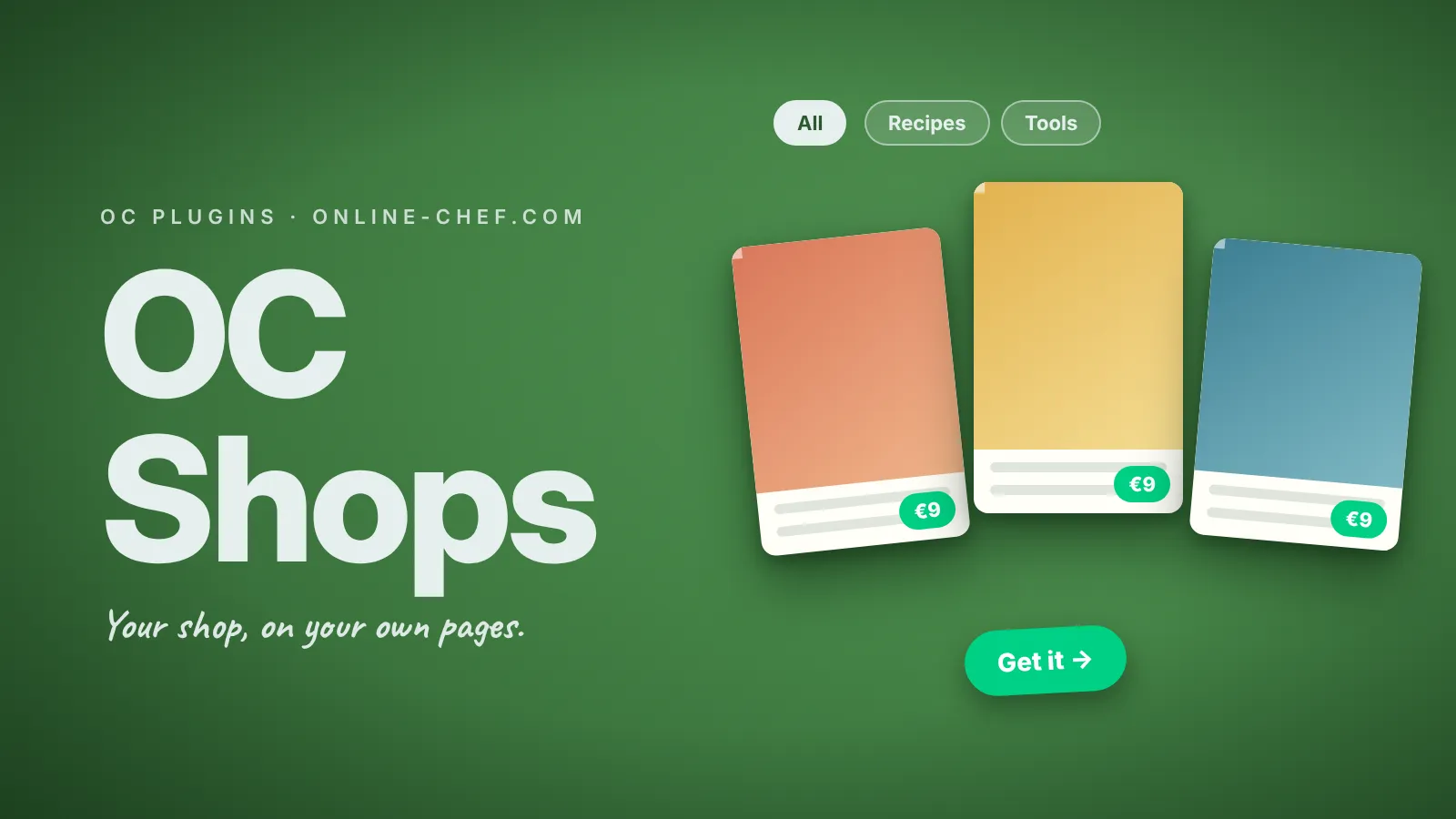
Online-Chef Shop lets you add your products once and show them anywhere on your site as a clean, responsive grid. A click on a product opens your external shop, Payhip or any other. There is no cart, no checkout and no payment code, so there is nothing to maintain and nothing that can break your sales.
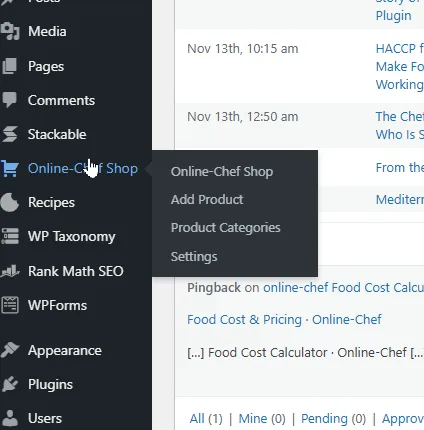
You work in three places:
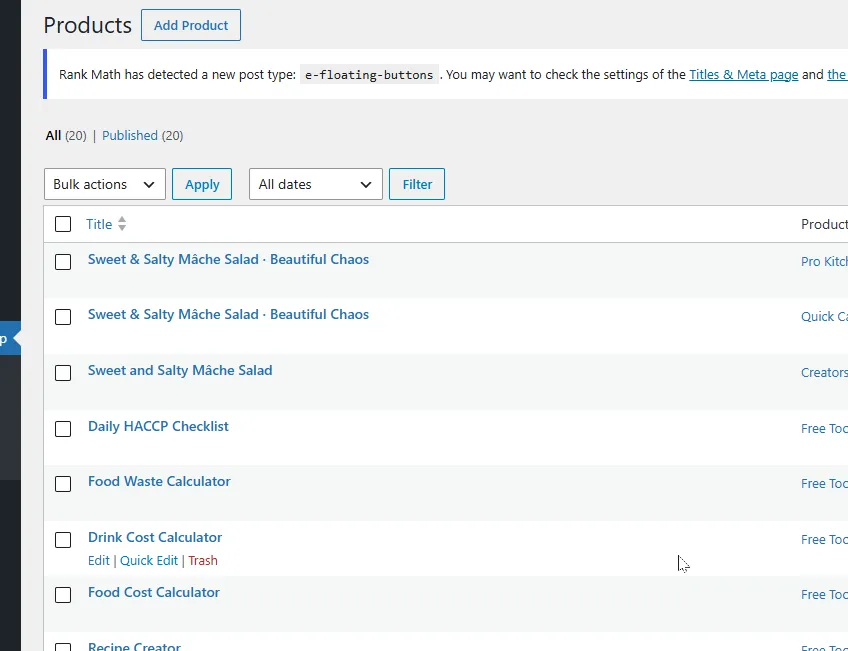
- Products: a new menu entry where each product gets an image, title, subtitle, price label, badge and link.
- Settings: one page for your shop address, number of columns, spacing, rounded corners and accent colour.
- The page: a Gutenberg block called Online-Chef Shop, or a shortcode, that draws the grid wherever you place it.
Features, one by one
Every feature was added because we needed it on our own Digital Kitchen page.
| Feature | What the visitor sees | What you control |
|---|---|---|
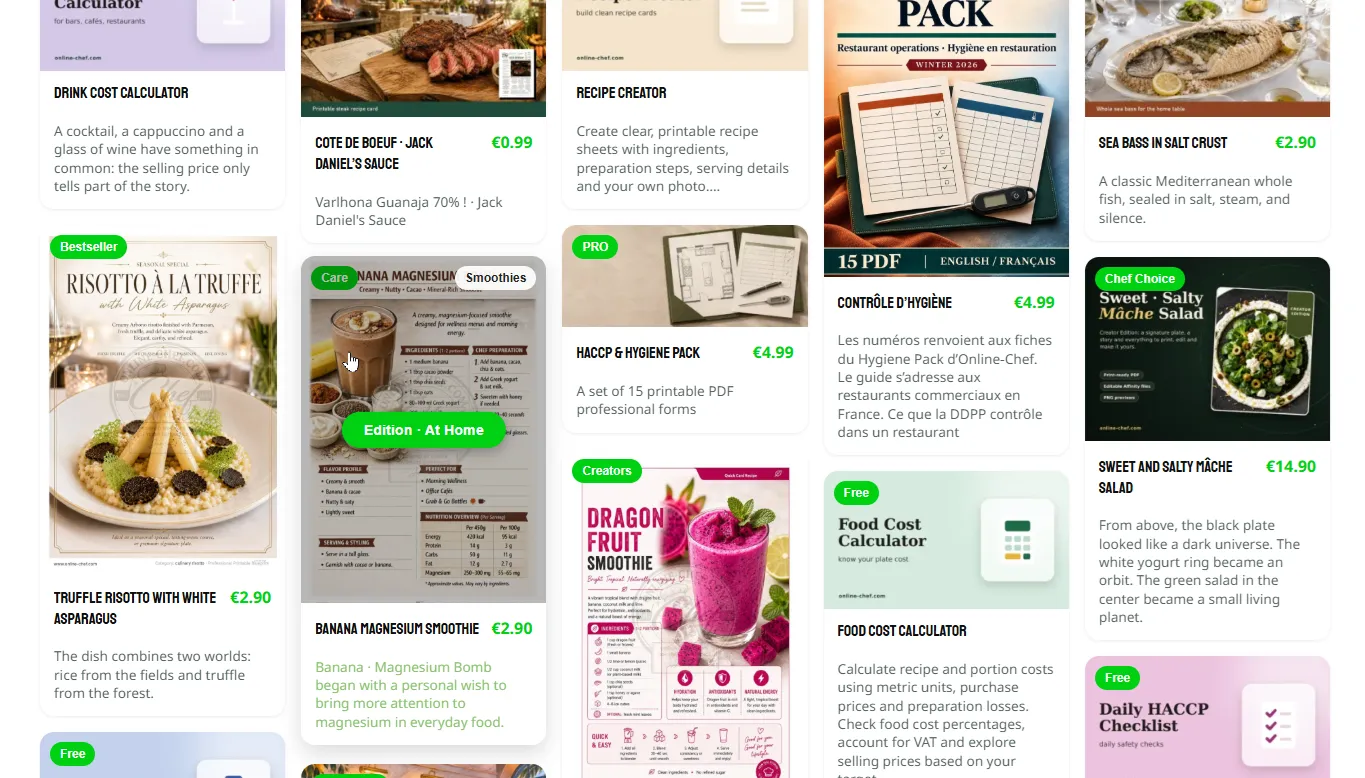
| Pinterest grid | Cards of different heights flow into columns | Masonry or even grid, 1 to 8 columns |
| Hover button | A button appears in the middle of the picture and the image darkens slightly | Button text, per product or for all |
| Category label | A small label in the top corner, shown on hover | Categories you create, on or off per block |
| Subtitle | A short grey line under the title | Optional field on each product |
| Badge | A pill such as New or Bestseller on the picture | Free text on each product |
| Price label | Price next to the title, in your accent colour | Free text, so any currency or “Free” works |
| Filter bar | Buttons such as All, Recipes, Templates that filter instantly | Built automatically from your categories, on or off |
| Image ratio | Square, portrait, wide or the natural shape of the image | Block or global settings |
On phones and tablets there is no hover, so the button and category label stay visible at all times. The grid narrows to three columns on tablets and two on phones.
Nothing is forced. Every setting has a global default on the Settings page and can be overridden in a single block, so one page can show a four-column masonry grid and another a three-column grid with only the Recipes category.
Under the hood
The plugin is small on purpose: one PHP file, one stylesheet and two short JavaScript files, with no build step, no dependencies and no external requests. It adds no database tables and loads no tracking, fonts or scripts from other sites.
Data model. Products are a custom post type, ocps_product, with its own admin menu and REST support. Categories are a hierarchical taxonomy, ocps_cat. Everything else is plain post meta, so your content stays portable and easy to export.
| Data | Stored as | Purpose |
|---|---|---|
| Product title | Post title | Name on the card |
| Product image | Featured image | Picture on the card |
_ocps_url | Post meta | Link to the external shop |
_ocps_sub, _ocps_price, _ocps_badge, _ocps_btn | Post meta | Subtitle, price label, badge, own button text |
| Order | menu_order (Page Attributes) | Manual ordering of products |
ocps_settings | One option | Global defaults: shop URL, columns, layout, ratio, gap, radius, accent, button text |
One renderer, two doors. A single function, ocps_render(()), builds the grid. The Gutenberg block ocps/shop calls it as a server-side render callback, and the shortcode [online_chef_shop] calls it with the same attributes. The two can never drift apart. The older shortcode name [payhip_shop] stays as an alias so existing pages keep working.
A dynamic block with no build tooling. The editor script is written with wp.element.createElement and the core components PanelBody, RangeControl, SelectControl, ToggleControl and TextControl. The block saves nothing to post content (save returns null), so changing a setting or a product updates every page at once. The editor preview uses ServerSideRender, which means what you see is what the site renders.
Styling with CSS variables. Columns, gap, radius, accent colour and image ratio reach the stylesheet as custom properties on the grid. Masonry uses CSS columns, the even grid uses CSS Grid, and two breakpoints (900 and 600 pixels) reduce the columns. Hover effects sit behind @media (hover: none) rules so touch screens get a visible button instead.
A filter in about twenty lines. Each card carries its category slugs in a data-cats attribute. The filter bar is generated on the server from the categories actually present in the grid, and a small vanilla JavaScript file toggles the hidden attribute on cards. It is loaded only on pages where the filter is switched on.
Cache-safe updates. CSS and JavaScript are versioned with the file’s modification time, so a plugin update is never hidden by an old cached file, a problem we met ourselves while testing.
Security basics. Product fields are saved only with a valid nonce and the edit_post capability, links pass through esc_url_raw, text through sanitize_text_field, and all output is escaped with esc_html, esc_attr and esc_url. Settings are sanitised and range-limited on save. Requirements are WordPress 6.0 or newer and PHP 7.4 or newer; the plugin is tested on WordPress 7.1.4.
Get started in five minutes
- Install. In WordPress go to Plugins, Add New, Upload Plugin, choose the ZIP and activate it. An Online-Chef Shop entry appears in the left menu.
- Set your shop. Open Online-Chef Shop, Settings, and enter your shop address. Choose your columns, layout and accent colour.
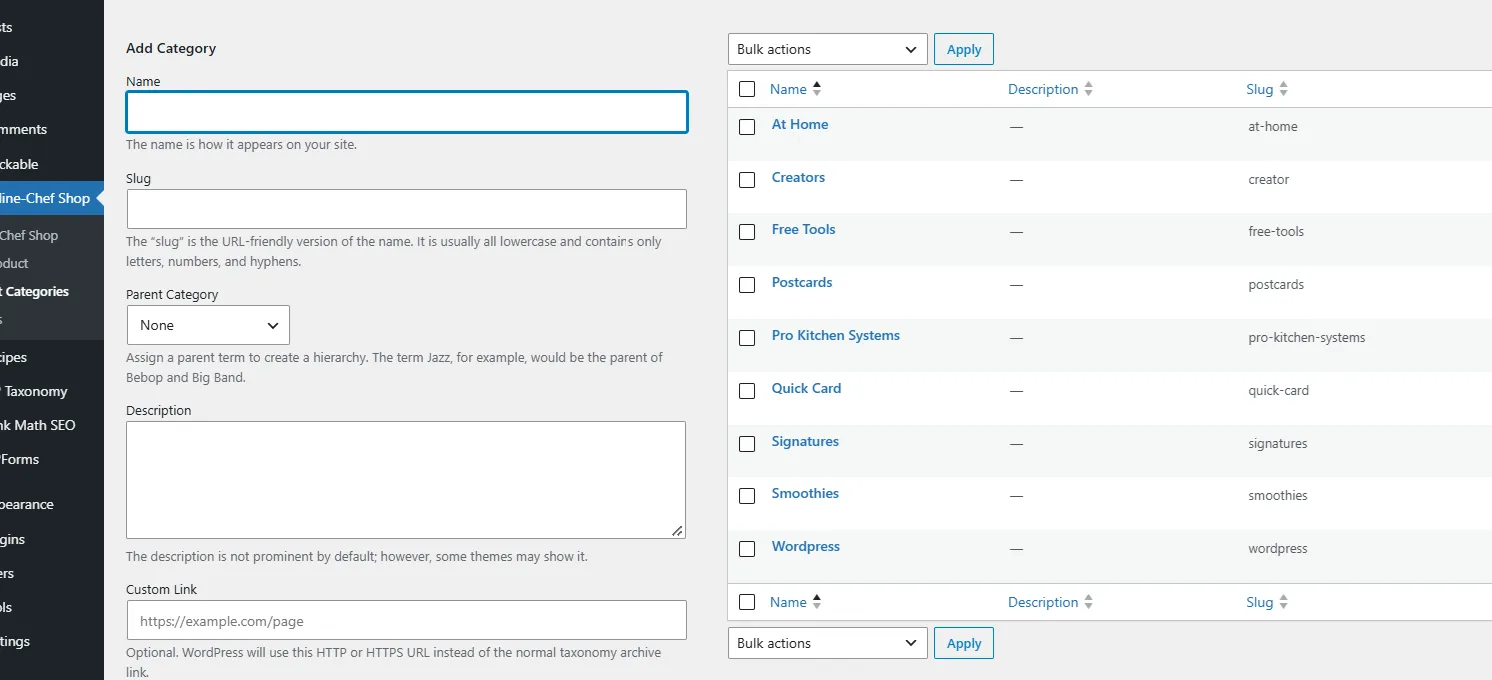
- Create categories. Under Product Categories add names such as Recipes, Templates or Prints. They become the filter buttons.
- Add products. Choose Add new, enter the title, add the product image as the featured image, then fill in the shop link, subtitle, price label and optional badge.
- Place the grid. Add the block Online-Chef Shop to a page and use the sidebar controls, or paste a shortcode:

[online_chef_shop columns="4" layout="masonry" filter="yes"]Useful shortcode options are category=”recipes” to show one category, limit=”12″ for the number of products, orderby=”date” for newest first, and cat_label=”no” to hide the hover label.
A small tip from our own kitchen: use images of different heights for the most Pinterest-like look, and keep subtitles to one short line.
Free for everyone, and what comes next
Online-Chef Shop is free. It is released under the GPL, the standard WordPress licence, so anyone may use it, adapt it and pass it on. It was developed by Online-Chef.com | EI, a registered business in France, and the author line in the plugin says so.
We are already thinking about the next courses: an optional Payhip overlay so guests can buy without leaving the page, separate colours for button, price and badge, and a listing on WordPress.org so the plugin can be found straight from the Add Plugins screen.
If you run a restaurant, a food blog or any small digital shop and try it, tell us what worked and what did not. Good tools, like good dishes, get better when the people using them talk to the cook.
Lizza Zikkina, for Tales of Interest on online-chef.com